What this tool does #
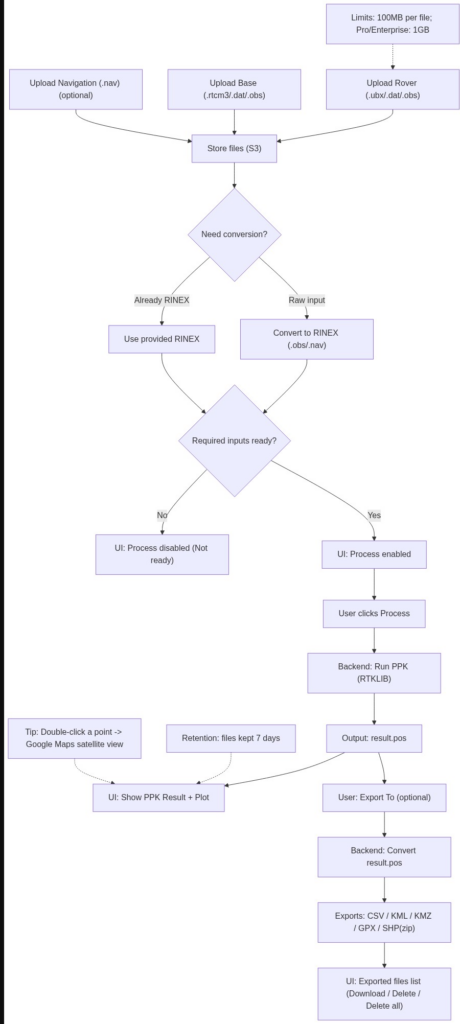
PPK Studio is a web-based PPK (Post‑Processed Kinematic) tool. You upload Rover/Base data (and Navigation if needed). The system converts raw files to RINEX in the backend, runs PPK processing, generates result.pos, and visualizes the solution on the plot. You can also export the result into multiple formats.

What you need before you start #
- Rover data (rover observation data)
Supported: .ubx / .dat / .obs
- Base data (base correction/observation data)
Supported: .rtcm3 / .dat / .obs
- Navigation data (optional / depends on workflow)
Supported: .nav> Note: If you upload raw files (e.g., .ubx/.dat/.rtcm3), PPK Studio converts them to RINEX (.obs / .nav) automatically in the backend. If your Rover input is already RINEX .obs, you may need to upload the corresponding .nav file.
Workflow #
- Upload Rover and Base
- In the left PPK processing panel, click Upload Rover Site Data and Upload Base Site Data.
2. Backend conversion
- The system converts raw files to RINEX (.obs / .nav) in the backend.
3. Wait for Process to become enabled
- Once the required RINEX files are ready, the Process button becomes enabled.Run PPK
4. Click Process to start PPK. You can leave the page and come back later.
5. When finished, result.pos appears and the plot on the right shows the solution.
Export #
After result.pos is available:
- Click Export To to convert result.pos into:
- CSV, KML, KMZ, GPX, and SHP (zipped)
- Exported files will appear under Exported files:
- Click a file name to download
- Use the trash icon to delete a file
- Use Delete all to remove all exported files
Plot Tips #
- Double-click a point on the plot to open Google Maps satellite view at that location.
- File retention: Files are kept for a limited time (7 days). Download your results and exports in time.

Upload limits #
- All users: maximum upload size is 100MB
- Pro / Enterprise users: maximum upload size is 1GB
Quick troubleshooting #
- Why is Process disabled?
One or more required inputs are missing (often Rover/Base or a needed .nav). Check the Quick Guide Steps 1–4 statuses.
- Why does the plot show “No PPK result yet”?
You haven’t clicked Process, or processing is still running. When finished, result.pos will appear and the plot will render the solution.
Flowchat #