Table of Contents
What this tool does #
RTK Base Analyzer retrieves RTCM data from an external NTRIP mount point and generates a report about your RTK Base station, including:
- Base coordinates (lat/lon/height when available)
- Protocol / hardware information
- Summary statistics (e.g., message counts, time range)
Before you start #
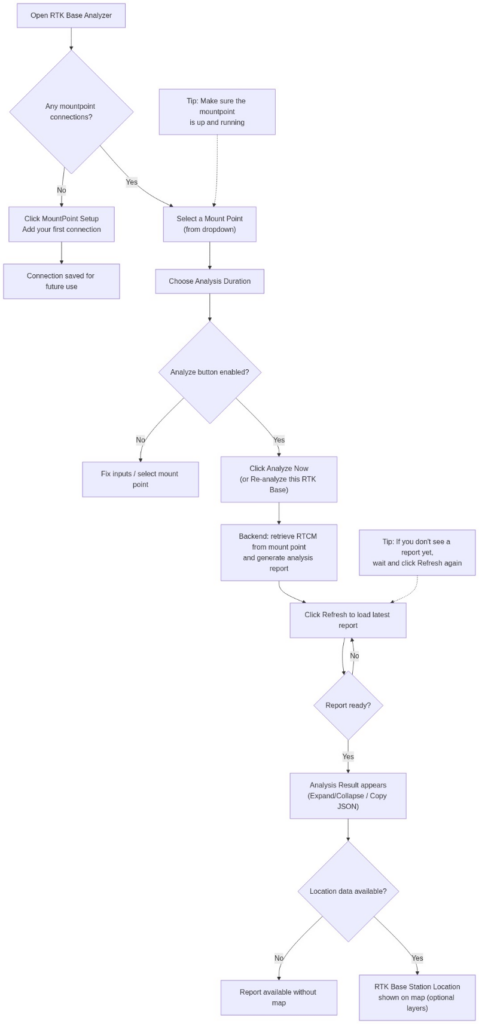
- If you haven’t configured a mount point connection yet, click MountPoint Setup and add one.
- The settings will be saved for future use.

Workflow #
Set up a MountPoint connection (first time only) #
- Click MountPoint Setup
- Add and save your NTRIP mount point connection
If you have no mount points yet, you’ll see an empty-state card (e.g., “No mount point connections yet”) with a MountPoint Setup button.
Select a Mount Point #
- Choose a mount point from Select a Mount Point.
Set Analysis Duration #
- Pick an option from Analysis Duration (for example, 5 minutes).
Analyze now → Refresh result #
- Click Analyze Now (or Re-analyze this RTK Base) to start the backend analysis task.
- Click Refresh to load the latest analysis report once it’s ready.
- The report will appear under Analysis Result.

Understanding the report (Analysis Result) #
In Analysis Result, you can:
- Use Expand All / Collapse All to open/close sections
- Use Copy JSON to copy the raw JSON output (useful for troubleshooting or sharing with support)
Map / Base location #
- If location data is available, the base position will be shown under RTK Base Station Location with a map.
- You can switch map layers (e.g., Google/Bing) using the buttons under the map.
Tips / Notes #
- If you don’t see a report yet, wait a moment and click Refresh again.
- Make sure the mount point you are analyzing is up and running
Flowchat #